
Saving money when buying a new Mac "Laptop" (and most "Desktops") as an ordinary retail customer: (In short, don't buy it from the Apple store... period)
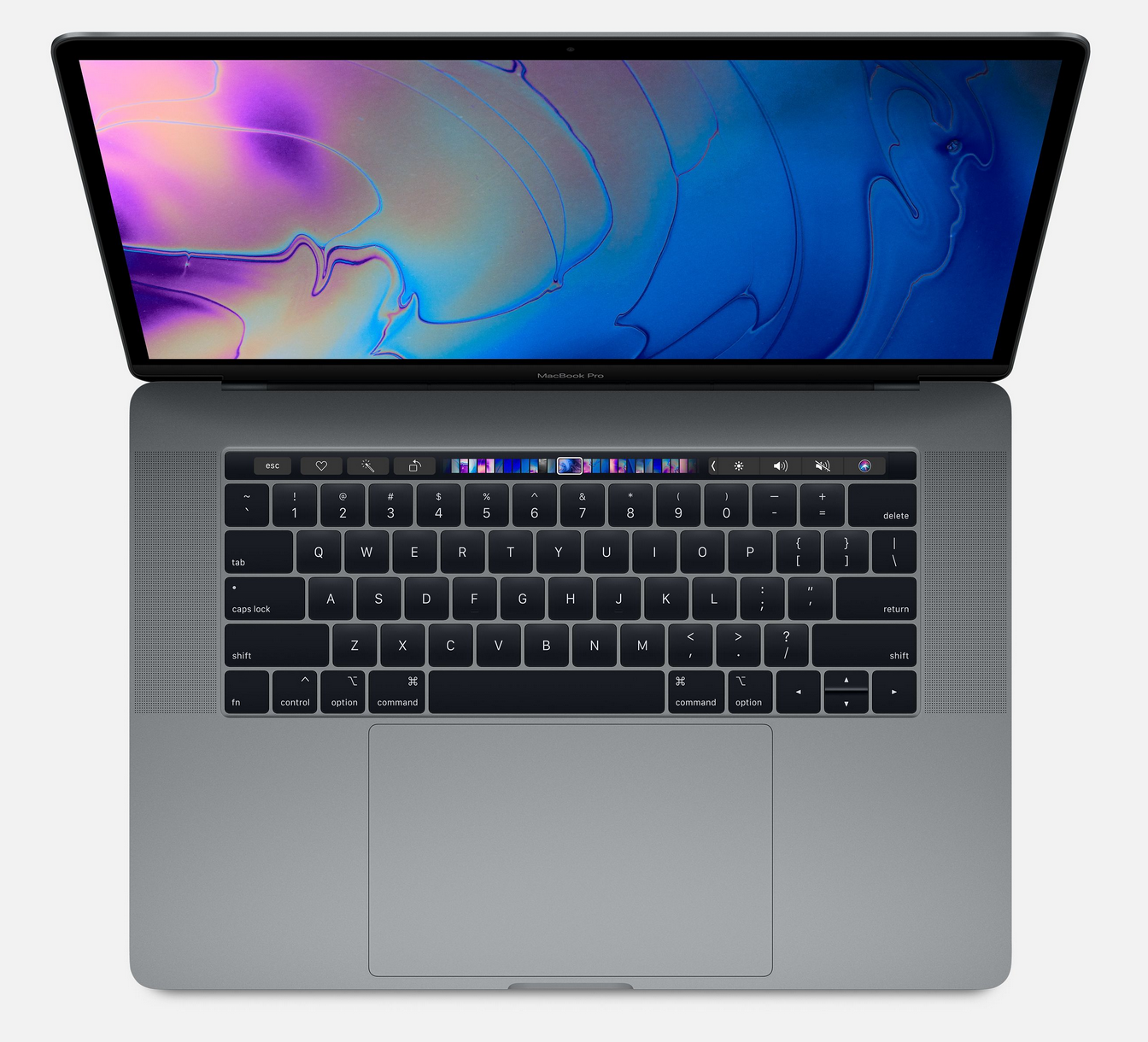
Buying a new Mac isn't the hard part. But buying the right Mac isn't so easy when it's a "one shot" deal. Let me explain...
In 2016, Apple drastically shifted its laptop (and later, the occasional desktop) design from an upgrade-friendly mentality using sockets to connect the hard drive and RAM, to an upgrade-prohibitive method of soldering the hard disk and RAM directly to the logic board (What Apple calls the motherboard in it's laptops). This meant that you could never upgrade newer models in the MacBook, (Plain old MacBook/MacBook Air/MacBook Pro) range of computers after you've bought it, and it caught a lot of people off-guard.
Apple claims that this improved reliability (no loose sockets after all) and stopped people tinkering with things they shouldn't (providing greater reliability by avoiding damage), it also stopped people installing cheaper off-brand components with compatibility issues, (which again, avoided issues). However, it also means that the only time you can upgrade your Mac, is when you're selecting the options at the time of purchase. Since Apple is in charge of the assembly of all their products, with such a monopoly in place, it's easy for them to charge significantly more for a modest upgrade than you would ever see in other brands of computers... and they do.
The official Apple store never has "sales". Ever. You pay retail, and you pay their inflated price for upgrades. Unless you're working/studying in educational institutions... then you get a discount.
If you have to buy directly from Apple, here's how to save money on Apple gear:
There's the obvious stuff like salary sacrificing, and writing things off on your tax (Seek professional advice because if you do it wrong, the cost of the laptop will be dwarfed by your fine and legal expenses) but there's another way...
Students (and parents of students, please note that if you've got a child in school/university), you can get an education discount. It might well be worth waiting until you have the required student ID, or enrolment form to save money on your Macs instead of buying it beforehand. Unfortunately, no education discounts apply to Apple mobile devices such as iPhones, iPads, or Watches.
The education discount doesn't just apply to students. It also applies to people who work in any role within for educational institutions, (TAFE, schools, universities, etc) as long as you have a valid and current ID from that educational institution. I was an IT guy at a university for many years, and I happily claimed my discount when I was buying something.
WHY YOU SHOULDN'T BUY FROM APPLE:
As of 2023 and beyond, third-party sellers are now offering discounted prices on any standard or even custom-built Mac in a way the Apple store never does. If you're in Australia, JB-HiFi, MacFixit (I've used both personally) both offer this service. I upgraded my 2010 Mac Mini Server to an 2023 M2 Pro Mac Mini using JB Hi-Fi, and upgraded my 2014 Mac Mini to an 2024 M4 Pro Mac Mini using MacFixit.com.au. But you HAVE to talk to someone in store, because the online chat-assisted sales team can't do quotes and discounts. "The JB deal" and "MacFixit Discounted Quote" is NEVER an option on their basic online store. Don't expect to just grab one then and there.... Once ordered, you'll probably have to wait until Apple ships a new machine to you directly.
How does this work?
Most people buy from Apple, and the big shiny store with lots of uniformed "sales assistants" costs a ton of cash to support. Meanwhile, other vendors simply buy so many Apple products, that they pass their purchase-power discount onto you in an effort to get your business. These savings have been (in my and Ren's experience) about $170-220 (on cheaper Mac Mini models in 2024 and 2025) and about $300-500 (on Ren's higher-end M4 Pro MacBook Pro in 2025). It was also about $300 cheaper for my M4 Max Mac Studio. Patience is a virtue here... these savings were achievable, simply sending an email, waiting for a quote, and waiting for delivery. That said, I've had my Mac Studio turn up in 3 business days from ordering... on 23rd of December during the postal insanity of Christmas!
Want a really good Mac for cheap (in 2025/26)?
The base model M4 Mac Mini is bar none, the cheapest and best value new Mac in the 2024/25 lineup at under $1000 Australian. If you already have a TV/monitor, and your own USB/Bluetooth keyboard and mouse.. (the Mac Minis do NOT include these) then the Mac Mini M4 is a very compelling choice. This thing isn't stripped down to mostly web-functions like a Chromebook, you get every Mac feature, free OS with no Windows "End of Life" issues either.
Let's see what you get for the M4
- 10 Core CPU, 10 Core GPU
- 16GB of RAM
- 256GB SSD (upgrade to 512GB)
- Complete system box (no peripherals) in a tiny package, very quiet, and sleek.
- PRICE: $999 (Australian) $1299 (Australian with upgrade)
Ok sure, this Mac, at $1299 is priced on par with a Ryzen 5, Windows 11, 32GB RAM, 1TB drive. (December 2025). However the base model M4, priced at $999... well it's hard to build a good PC system for that price that even matches the M4. Also, the Mac Mini can fit in a handbag.. good luck with doing that with a PC! So if space is a concern, then you definitely should consider the Mac Mini.
Don't let the spec sheet fool you though...
The M4 Mini is a system on a chip (SOC). The CPU, RAM, & graphics card are all built into a single chip. Putting things so much closer to each other than the usual PC hardware layout. This has real performance gains, much like giving a middle aged office worker a 100m sprint while getting an olympic runner to do the 5000m or even 10,000m in the same race... The M4 doesn't have to have fastest or most cores if the travel times between components are shaved by 90%
This tiny computer packs a mighty punch for it's price, and the base model is more powerful than most people would need if they're streaming movies, basic photo editing, doing homework, or working on office documents. It even plays some games.. not to the spec of a $5000 gaming machine (let's be real here) but good enough to keep kids happy for hours.
It runs all the latest Mac software very well, and easily competes with significantly more expensive Mac models that are just a year or two older. The only issue is that the 250GB SSD is quite limiting. (I'll talk more about that below) However, if we're looking for some "quick and dirty" performance comparisons:
My 2019 Intel MacBook Pro (that was quite high end at the time) takes 7-15 minutes to do my typical CAD rendering. The M2 Mac mini from 2023, did that in 2-3 minutes. This M4 Pro Mac Mini does it in 30 seconds... or less.
How to save money on storage upgrades?
I thought there were no after-market upgrades? Well, until recently, there wasn't. But Apple put sockets back into the M4 Mac Mini series... and even though they're proprietary drives (the sockets are wired differently) people got tired of paying $800-$1000 for a bigger hard drive, so third-parties started to design storage for them. (Note: The M4 & M4 Pro Mac Minis need different upgrade drives, so be careful to order the one suited for your machine). However, there's a catch you will need another Mac (just for an hour or so) to make this work. Have a look at the drives from these two vendors.
https://expandmacmini.com/shop/
Of course, you can do what I did and just buy an external hub/docking station like this:
https://hagibis.com/mac-mini-m4-hub-with-ssd-enclosure-p00335p1.html
and drop an NVMe drive (say a 2TB for $160 Australian) inside, which works well enough for my work files, (drone footage, 3D scans, video training, etc). Although I did upgrade my internal drive when I bought my M2 and M4 to have the 512GB SSDs... so it's less of an issue.
Be careful with second hand Macs.... a lot has changed in the last few years.
In 2020, Apple switched over from Intel-made CPUs to it's own "Apple Silicon" which is designated my the M1, and in subsequent years, improved series were designated M2, M3, M4..... It's a gamble that really paid off. They literally crammed the various graphics card chips (GPUs) the power saving CPU cores, the "Performance" CPU cores (not so power saving) as well as the shared RAM for both the CPUs and GPUs into one chip. The vastly reduced the overall size, and meant that the distances to communicate with all these parts much shorter. As a result the M series is much faster. Now to be fair, the difference between each subsequent M series has been reduced from the huge jump that the M1 brought to us. That said, they're still significant... and things can change.
Are all Macs going to run everything I need?
Honestly, the Mac OS support for Intel-based Macs is scheduled to die within a few years... so I'd at least try to get an Apple Silicone based model at this point. However, if you're interested in running a Mac Mini as a firewall box, or media server, installing Linux on an older model will keep it useful for it's remaining lifespan. However, if a new M4 Mac mini costs less than $1000, and people are trying to sell 2014 era Mac Mini's for $250, sometimes even $500.... it's really worth saving just a little bit extra.
What hardware should I be avoiding?
Well that depends on what you are going to run. If you're considering second-hand.... just know that even in January 2020, that many (then) new low-to-mid level laptops (MacBook Air, MacBook, and MacBook Pro) were still sold with solid state hard disks (SSDs) as small as 256GB & 8GB RAM. Honestly, that was fine for your average web surfing, emailing, and document writing, and streaming videos.... but completely inadequate for much else. Today, that's just not good enough, and many people still try to sell them for upwards of $250, $400.. and beyond.
Beware older desktops too!
Entry level 2020 era iMacs, sold with a default 1TB, 5400 RPM hard drive. This was, bar none, the cheapest, nastiest type of drive available. Do NOT accept this drive. It will substantially hinder performance, as it operates at roughly one fifteenth the speed of a 2020-era SSD. It will cripple your machine because doesn't matter how fast your CPU is, if it's constantly waiting for the data to be read from the disk, and be written to the disk. Don't do this to yourself! The number of times people have "just gone out and bought a Mac" only to discover that it's a lemon because they didn't do their due diligence, is far too high.

In the image above, (Taken from Apple.com.au on 9/1/2020), note the storage and memory section (Memory = RAM). In storage, see that 5400-rpm in the first two models, and "Fusion Drive" in the third. Now look at the upgrade options for each machine. Sometimes it's worth buying a better model to begin with, that comes with better equipment as standard, than upgrade a cheaper model. In this case, the CPU goes from 2 cores, to 4 cores, and then 6 cores respectively, and the RAM (memory) becomes progressively faster, despite all being 8GB in size.
What advice do I give for those looking to build a custom order Mac?
The best bang-for-buck upgrades in Apple can usually be ranked in this order:
- Get an SSD of suitable size (not really an optional extra, but try to keep it to 512GB or above).
- Consider upgrading the RAM, for new machines, I strongly urge you to consider a minimum of 24GB. This helps the SSD further, and maximises the potential of multi-core CPUs (which all new Macs have).
- Graphics card upgrades. If you do a lot of 3D animation, gaming, even photo/video editing, improving the video card can be a worthwhile and substantial upgrade, and takes some of the workload off the CPU.
- From here it becomes a matter of personal needs/preferences:
- Consider upgrading the network interface to 10Gb, or adding an external one. Wi-Fi is all good and well, but if you're dealing with large files, many files, or constant data traffic, then this will help immensely. While Thunderbolt is an amazing technology, the sad truth is that it has limited compatibility with most storage arrays. Thunderbolt-compatible storage arrays command a hefty premium on top of an already expensive piece of equipment, so a good ethernet connection is a good choice. Large transfers, or 4K movie processing becomes so much easier and more reliable with a wired 10Gb link as opposed to Wi-Fi speeds.
- CPU upgrades. Wait, that's the first one, isn't it? Yeah, but you'll find that without the other upgrades, your bottleneck isn't going to be the CPU, it'll more likely be the hard disk, RAM, or video. That said, if you like running lots of parallel processes/applications at the same time, or run multi-threaded apps... then this might be higher up the list. However, not all CPU upgrades are substantial, but can be substantially priced. Make sure you put the money where it will do the most good.
Just to repeat, if I wasn't clear enough...
I honestly believe that if you want to use your Mac for a while, and intend to future-proof it to some degree, (Macs are expensive to replace and many are impossible to upgrade) I recommend that an SSD with a minimum size of 512GB should be considered. If you need more space, then you can either upgrade to a 1TB, or more. A cheaper option would be to buy an additional external drive like the Samsung mentioned below. If you're a photographer, videographer, or just use a lot of big apps (Adobe everything, CAD software, Maya, or just handful of modern games) 1TB is probably the starting point. With cameras now getting up to 61 megapixels and beyond, photo and video editing requires high transfer speeds. Consequently, a rotation drive of any speed just doesn't cut it for anything more than backup in 2020 and beyond.
I've ordered a Mac, is it over?
Unfortunately, no... this is just the beginning. Lets talk about accessories.
Apple "accessories" which really are essential:
If you're someone like me who has a computer that predates the "big shift" of Apple (done in 2016), you'll note that the older type A USB devices (used since the 90s) no longer connect to your post-2016 Mac laptop. Similarly, you'll notice the lack of common video sockets like Mini Display port or HDMI. If you're a photography buff, who was used to the convenience of an in-built SD card reader, you'll be disappointed because that's disappeared too. Perhaps more disturbingly to some will be the lack of a RJ-45 network port. Even data transfer ports like FireWire and Thunderbolt 2 are also completely gone. So if you have a lot of pre-2016 cabled peripherals, you're going to be in a bit of a situation.
Depending on the age and model of your post 2016 Mac laptop, you might have one, two, or four of these new "Thunderbolt 3", or "USB-C" ports and a headphone jack. Wi-Fi and Bluetooth are still available, but with absolutely nothing else. So you're going to need a multi-port dock or hub to connect these things.
Multi-port dock vs multi-port hub, (a.k.a: "mini-dock" or "travel dock"):
Docks:

Docks are not usually considered "portable" accessories. They're designed for people who use their laptop "as a desktop" with external monitors and other peripherals when at home or in the office. Most docks are usually left connected with the usual network, monitor, keyboard, and mouse (at least) on a desk somewhere. Docks effectively allow you to charge the laptop and connect numerous cabled devices through one (occasionally two) convenient socket(s). The most defining characteristic of most docks (that separates them from smaller, more travel friendly hubs) is that they are externally powered. Meaning they plug into a wall socket somehow. This enables the dock to provide the power required for more peripherals and can have anywhere between 7-15 ports, usually some mix of:
- USB A sockets
- USB C ports
- HDMI/Display ports for external monitor(s)
- Audio Interfaces
- Card readers (usually SD cards and Micro SD cards, higher end ones offer CFast card support)
- Ethernet (sometimes gigabit, some even offer 10 gigabit)
- Even hard disk connections such as e-SATA.
Basically, at between $250 and $650 Australian, these are the high end, high performance, and high powered options to connect your Mac laptop to a work-desk-like setup. Some are based the 40 gigabit Thunderbolt 3 connection, and some use the decent-yet-slower (and consequently cheaper) models use the 20 gigabit USB-C technology instead.
Hubs, Travel Docks, and Mini Docks (different names for the same thing):
Hubs are the most common type of multi-port adaptor. They basically do the same thing as docks, but in a smaller, more transportable package, with less ports than their larger dock alternatives, they get their power from the laptop, or the laptop's charger. Which means peripherals have to share the power coming in that would normally be used by the laptop. Frankly, the vast majority of these hubs are based on the USB-C tech, with a handful of higher-priced models using the faster Thunderbolt 3 to connect everything.

Hubs/Mini Docks/Travel Docks vary wildly in features, cost, and quality. Some will offer one or two HDMI connections, whereas others will have one or two Display Ports. Some will have gigabit ethernet, while others won't. Some may only have one USB A socket, while some will have three. It's important that you order the right one for your needs. No-name brands can start in as little as $40 but they're typically awful, don't work reliably, or at all.
Please note that when they discuss "4K", video, it's not necessarily equal. Some will run one monitor at 4K at 30Hz, while others run two 4K monitors at 60Hz. Some even run at 5K, but they're pretty few and far between. So note those details before you get caught out.
Where not to get accessories?
It may seem obvious that you can buy accessories for Apple computers from Apple itself. However, it may seem odd that many of the best accessories are not sold by Apple at all. However, don't take my word for it, if you go to the Apple Australia website:
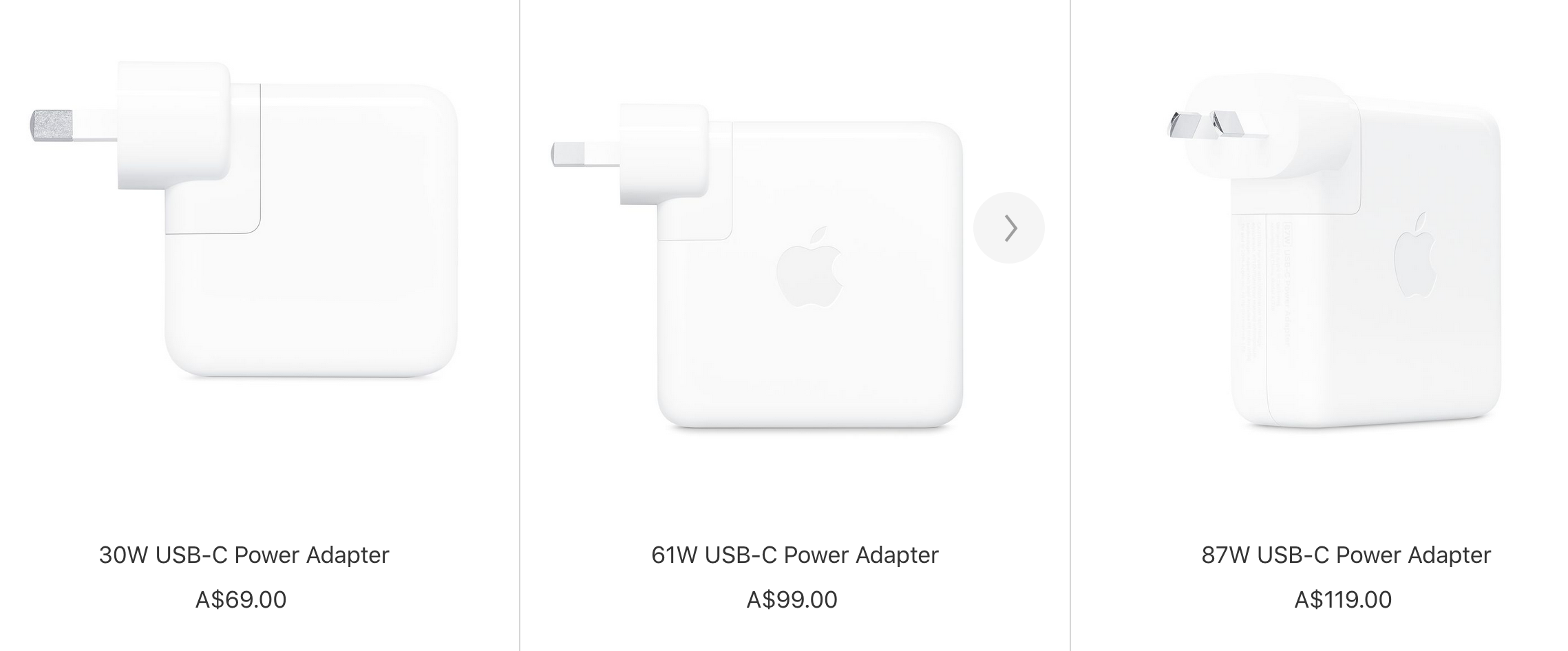
You'll see a lot of this...


I've added perhaps the two most commonly looked at Apple-branded accessories sold by Apple.
Notice the relatively simple 3 port "multiport adaptor" compared to the docks and hubs above. Considering one port is for your power adaptor to charge the laptop, you're only gaining one USB A port, and one HDMI port. Admittedly, it can run one 4K monitor at 60Hz which is very good, but the port-to-purchase price ratio is appalling. You can buy better hubs for around the same price. Looking at the power adaptor for the 15" MacBook Pro, you'll notice that 87W USB-C power adaptor is a genuine Apple power adaptor, it's something that's absolutely critical to running your laptop, and yet you may have noticed the low review scores. It's not exactly confidence inspiring, nor are these prices indicative of a "cheap and nasty" approach. So it begs the question...
Why do Apple accessories get such bad reviews? (Note: Apple removed all reviews from their site in November 2019 due to the impact on sales)
I think there are a number of causes here. I'm going to base them on my personal experience, and from reading some of the hundreds (if not thousands) of reviews that each Apple-offered accessory seems to get. It comes down to three things:
- Apple makes no effort whatsoever to prepare customers for significant change, or manage customer expectations. Unsurprisingly, customers get caught out, and this is frustrating, expensive, or both. Hence the negativity
- Apple is fantastic at marketing it's products, but terrible at providing key information.
- Underlying technology confusion. Same ports, but different technologies.
- Quality control, and general gluttonous profiteering.
1. Apple's failure in preparing customers for change, and manage expectations:
Apple has a long history of playing things close to the chest. Then in Apple tradition, they have a big conference and announce the new hardware and software, and basically the world is then expected to keep up. Any information before that point is kept "under wraps" with maybe snippets of information being dubiously disseminated on the online rumour mills. So when Apple brought out an all USB-C laptop in 2016, people were in for a rude awakening. Overnight, Apple products needed additional accessories to maintain basic functionality with existing peripherals. Unfortunately, this was quite early in the USB-C days, so many of the needed accessories weren't available, were unreliable, and often surprisingly expensive. Fast forward to 2019, and I still run into people desperately trying to figure out which USB stick will actually work with their 2018 Macbook Pro at the local JB Hi-Fi.
Back to the power adaptor...
No one likes change, but the new USB-C power adaptors now have a replaceable cable, which previous power adaptors didn't have. Considering that in older models, the non-replaceable cable was the most common failure point, (meaning you'd need to buy an entire new adaptor to fix the problem) you'd think making it replaceable would elicit cheers of joy. But then Apple increased the price then didn't include the cable. <cue lots of unhappiness here, resulting in a poor 1.5 star rating>. USB-C doesn't have that "safety disconnect" of the previous "MagSafe" connectors. Meaning that unlike older Macs, the new USB-C laptops won't conveniently and safely disconnect if someone trips on the cord. (Think laptop now crashes to floor instead) However, there are now USB-C cables with magnetically attached plugs to overcome this issue. However, Apple does NOT sell these.
It's true, that Apple sells the "charging cable" for another $29 on top of the $119.. which makes it a very expensive power adaptor ($158) However, it's very important the you pay attention to the language Apple uses to describe the thing. Apple describes their "USB-C charging cable" very specifically. Mostly because it's only specified to run as a charging cable, despite being USB-C terminated, I'm betting the wires in it are too thin for decent data transfer speeds. Funnily enough, people are complaining of flimsy construction, and slow performance when they're trying to use it as a USB-C data cable. So the lesson here is: Buy a higher quality third-party USB-C cable or two, possibly with a magnetic tip.
2. Apple markets well, but informs poorly:
It's undeniable that Apple has one of the best marketing teams on the planet. You can see what products look like, you can be really impressed by the prettiness of the screens, you can read about what upgrades will give you at 60% performance boost, and you can be impressed that Apple has compressed it down to a device mere millimetres thick in a svelte, lightweight package. However...
Apple doesn't say "Hey, this won't work with your laptop unless you buy <insert new-fangled accessory here>. Nor does it say just how much it will cost to bring your existing equipment inline with Apple's latest and greatest offerings. It's true that backwards-compatibility is a key driver of technological development inertia, but Apple didn't even have a transition generation of laptops offering both USB type A and C ports. In short, Apple has a "Keep up (and pay up) or be left behind" mentality. Now I know it's nice to have the best of everything, but most of my systems still run USB A because there simply isn't a USB-C option available for my peripherals. So this is why most people want a dock/hub as shown above.
Differentiation by making things look very similar.
Apple has a tendency to put form over easy identification. As such, there can be a variety of different accessories which all look very similar to one another. A good example is power adaptors. Each of these can look very similar, and I cannot tell you how many times one of my clients have bought the wrong one, only to discover that their power-guzzling Macbook Pro that needs an 87W adaptor won't charge on the 61W model intended for MacBook Airs and MacBooks when running. (It will charge slowly when the laptop is completely off, or perhaps in sleep mode) but note the word slowly.
Ok, so in fairness, Apple has this page to describe how to get the right one here:
https://support.apple.com/en-us/HT201700
But many people won't look for this page, and will just walk in and pick one "that looks about right" up off the shelf, not knowing that they're not "all the same" or just order the cheapest one online without seeking advice, not knowing that the lower power models are usually the cheaper ones for a reason. Honestly, even I have a hard time identifying older models because the specs are written in small, light grey text on a white background.. that sometimes gets worn off, grimy enough to obscure reading, or covered in "Test and Tag" stickers. In any case, it's not easy, so.. Please fix this Apple!
3. Underlying technology confusion. Same ports, but different technologies.

Note the similarity of the identical ports, but different logos. Logos will be on the devices, but the text is for this example only, it is never included on the devices in question.
In the past, Apple has used Mini Display Port sockets for both monitors, and Thunderbolt 2 data connections. The problem was that Mini Display Port sockets on the computer were not compatible with Thunderbolt cables and devices. But Thunderbolt 2 sockets were compatible with display port cables and devices. This one-way relationship caused a lot of confusion, particularly when buying accessories. For Thunderbolt to work, everything in the chain from point A to point B had to be Thunderbolt compatible. However, while many accessories would often physically connect, the Display Port grade accessories broke that compatibility chain, resulting in stuff "not working" and general user unhappiness... and tragically bad reviews.
Now Apple (well... Intel actually) has done the same thing again by using USB-C ports for both USB-C applications, as well as Thunderbolt 3 connections. Thunderbolt sockets and cables can carry a USB-C signal, but USB-C equipment cannot run Thunderbolt signals.
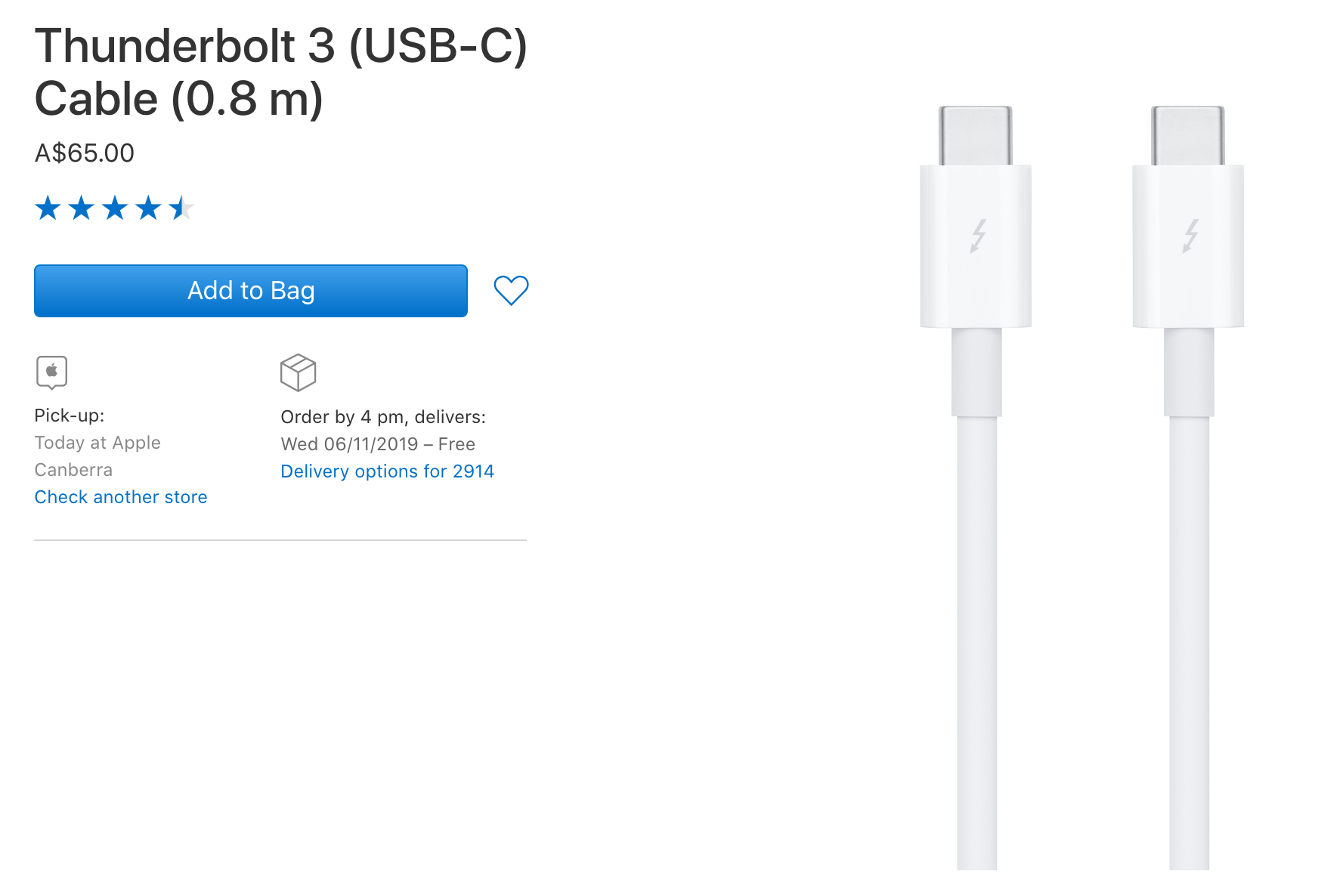
Understanding the difference between USB-C and Thunderbolt 3 is something that's not going to be immediately apparent to many. Despite using the same USB-C plug Thunderbolt has some additional underlying technology that makes it faster than USB-C. You can always tell the Thunderbolt accessories by the lightning logo, and if you're online, by the high review ratings... and price tags..... the USB-C cable from Apple will have comparatively lower ratings and is cheaper.

4. Quality control, and focus:
Apple makes computers and mobile devices. However, because of that focus, it doesn't make much in the way of accessories, nor are they particularly good at it. With complaints about Apple accessories ranging from "lack of durability", to "mould/mildew smells" coming from their USB-C charging cables. Many accessories from Apple are, in my honest option (based on 16 years of professional and personal experience) ... sub standard, expensive, and often limiting compared to the competition.
That's not to say that there aren't some good accessories. The Thunderbolt 3 to Thunderbolt 2 adaptor, the Thunderbolt 2 to Firewire 800, and the old USB A/Thunderbolt 2 to ethernet adaptors worked quite reliably for me. Possibly because they have to meet the stringent requirements set by the various Thunderbolt standards, or run well-established tech... despite being of a slower variety.
Proof of backwards compatibility...
A year or so ago, I was tasked with copying data from a G3 iBook from 2002 to a modern MacBook. Connecting via the G3's Firewire 400 port, I managed to bridge the connection by daisy-chaining a Firewire 400 to 800 cable, then using a Firewire 800 to Thunderbolt 2 adaptor, then a Thunderbolt 2 to Thunderbolt 3 adaptor. Sure, it was always going to be as slow as the oldest component <cue nod in the G3's direction> but it actually worked!
I honestly credit this to the Thunderbolt technologies and standards. If even one USB-C or Display Port cable/adaptor had been used here, the whole thing would not have worked.
So what accessories should I get, and where should I get them?
There are many online sites, suggesting what their best "Mac accessories" are, and a quick search online for "Best Mac accessories <insert current year here>" will no doubt bring them up. The interesting thing I find is how few Apple accessories are here. It would seem many people aren't thrilled by them.
Honestly, your needs will likely differ from my own. However, the things I've found helpful so far are:
- CALDIGIT Thunderbolt 3 Mini Dock, (Dual HDMI, Dual 4K Displays, USB 3.0, Ethernet): At $229 delivered, it's a high end model. It's expensive because it's Thunderbolt based rather than USB-C. You might not want to go that expensive. There are a number of cheaper alternatives from Satechi, and OWC. I'd recommend you have a look at the Macfixit Australia page for a wide variety of options.
- SanDisk "Dual Drive USB Type-C": Basically, these are affordably priced USB sticks that can connect to both USB-A and USB-C devices. One end has the USB-A connection, while the other end has the USB-C. So you can use them to transfer data from new to old Macs or vice versa if you want. 16GB models cost me $11.95, 64GB models were $22.50, and 256GB models were $63.95 each. I bought them from eBay with free delivery. I typically get something between 100-120MB/s transfer speeds, so it'll take a little under 3 minutes to fill the 16GB, roughly 12 minutes to fill the 64GB, and roughly an hour to fill the 256GB model.
- Samsung T5 (or T7, or beyond) USB-C external SSD drives: I like to back up some large amounts of data on the go, (photos, videos, sound recordings, and field data). While there are some blindingly fast external drives out there, with 3 gigabytes (not gigabits) per second... they're thousands of dollars for a couple of terabytes. I chose two, somewhat slower Samsung T5 2 terabyte SSD models as a cost/performance compromise. Samsung claims the T5 will transfer roughly 550MB/s (megabytes per second) which is more than enough for my needs. From real world testing, I can fill the 2 terabytes in 93 minutes which calculates to about 360MB/s. However, please note I was transferring lots of little files rather than huge 4K videos as a "less than ideal" scenario. However, these aren't cheap. At roughly $500 Australian (in Jan 2020) for each of the biggest 2TB models, those with more modest data needs might prefer to choose one of the smaller models. This model will drop in price over time, and new models will replace it. So check out what's available for yourself.
- Third-party USB-C 250W/Data cable: (For general USB-C device connectivity/charging) I bought a couple, one is a Satechi, reinforced and braided model for $40, The other is the magnetic tipped one, which cost me $26. The magnetically attached tip is really handy! However, it's quite difficult to remove from the socket once it's in... so I just leave it there most of the time. The Satechi has been rock solid and treated pretty poorly as I've travelled from one country to the next. However I regret to report that my magnetically tipped cable stopped charging the laptop.... perhaps I need a better quality one.
- True 2m Thunderbolt 3/4 cable: At $112 dollars delivered, for a cable, it's certainly not cheap. Now, the 40Gb/s standard usually only pertains to Thunderbolt 3 cables 50cm long (1.6 feet) or less. However, I'm willing to sacrifice the speed a little for the reach a two metre cable will provide.
- Apple Thunderbolt 3 to Thunderbolt 2 adaptor: Fortunately, Thunderbolt 3 and 4 use the same USB-C connections and there's simply no way I can skip this for my needs. I transfer data between new (post 2016) and old (pre 2016) Macs on a regular basis. It also forms the chain of adaptors and cables that enables me to directly transfer files from computers nearly 20 years old.
Where do I buy things? Well that depends. I like eBay as a starting point, but MacFixit (Australia) has a great range of docks, hubs, and upgrade parts (where possible). I've bought things from my local JB Hi-Fi, or local Apple store when I want an immediate solution. However, Harvey Norman, Bing Lee, and other stores often have useful items.
So in short:
- Don't shop at Apple stores (physically or online)
- You're spending a lot of money on a Mac computer. Get the 3 year extended Apple warranty. Some shops sell their warranties at substantial premiums over the AppleCare ones, (as my in-laws found out recently), so I helped them to register for the AppleCare, and saved them about $300. If you need repairs, and you aren't covered by warranty, Apple charges (last time I checked) $120 inspection fee, $150 per hour of labour, and then huge sums for parts. (New logic board, is likely to be over $600. New screen, can cost between $500, and $1500. All of these costs apply the second your 1 year standard warranty expires, and you'd be surprised how many devices die at around the 13-18 month mark. I look at my purchase as an investment that I intend to leverage for at least 4-5 years. So I'll cover it for as long as possible, and then use my own skills to prolong it as needed.
- If you want quality, don't buy Apple accessories, you're often better off buying a third-party solution.
- As always, try before you buy. Shop around, and don't be in a rush to buy a Mac. If you are in a rush, get an SSD hard disk of sufficient size at the very least.
I really hope that this has helped alleviate some confusion to someone out there. Or at least made you aware of the confusion so you can deal with it later.
Ham.